

29 Sept 2025
This comprehensive guide explores the intricacies of computer storage, specifically differentiating between Hard Disk Drives (HDD) and Solid State Drives (SSD). It delves into their operational mechanisms, various types, performance attributes, and ideal applications, providing clear recommendations for optimal system configuration.
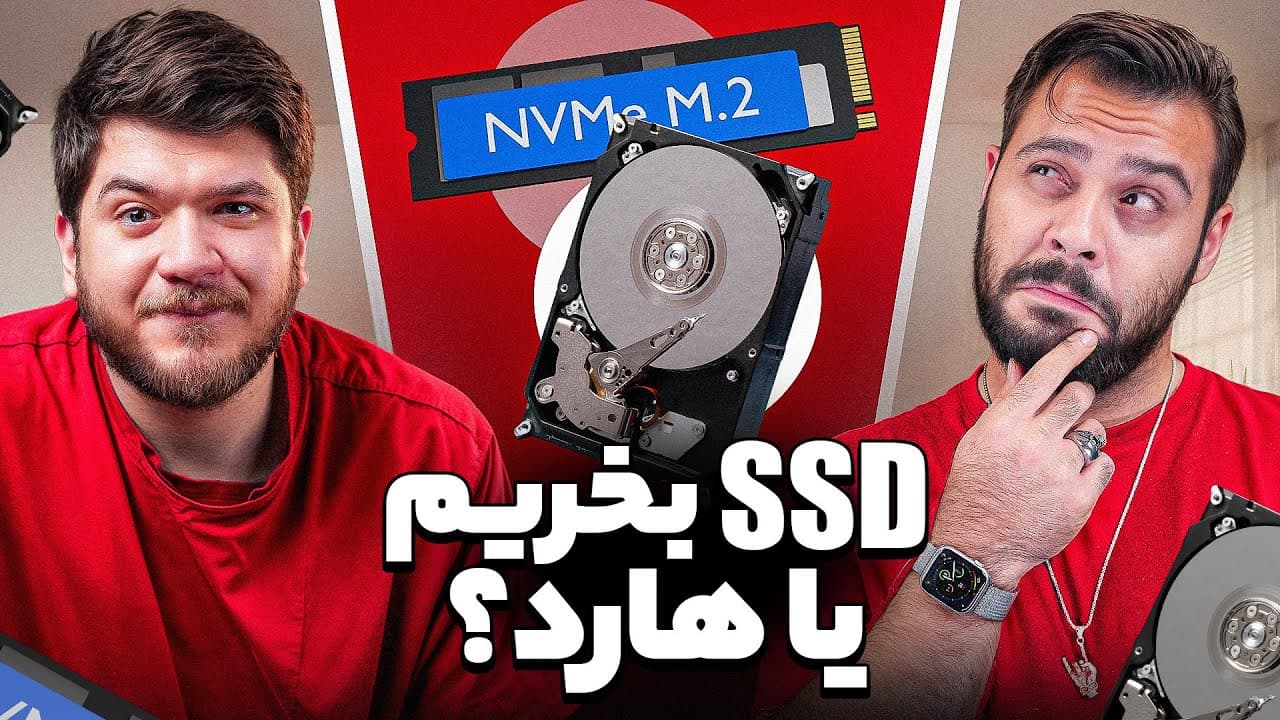
The discussion introduces two primary categories of computer memory: mechanical storage, referred to as 'hard memory,' and solid-state storage, known as 'dry memory.'
An HDD, or Hard Disk Drive, operates as a mechanical data storage system. Its function mirrors a gramophone, utilizing a spinning platter and a read/write head that creates and detects physical alterations on the surface to store various data units, from bits to terabytes.
HDDs are well-suited for high-volume data storage, including petabytes, and are commonly deployed in Network Attached Storage (NAS) systems for servers. They are also ideal for continuous video recording in surveillance cameras due to their robust design for 24/7 operation, despite offering lower read/write speeds.
Western Digital employs a color-coding system for HDDs to denote specific applications: Green drives are economical, Blue are standard for general use, Red are optimized for NAS servers, Purple are designed for surveillance cameras, and Black drives provide denser storage and higher read/write speeds. Gold drives are reserved for long-term archival storage of extensive media files, with capacities ranging from 1TB to 18TB.
HDDs offer the significant advantages of affordability and high storage capacity. However, they exhibit a shorter lifespan due to mechanical wear from continuous read/write cycles and are highly vulnerable to physical shock and movement, which can result in data corruption. Their sequential read speeds are relatively low, typically between 100 to 150 megabytes per second, with write speeds generally being even slower.
Solid State Drives (SSDs) represent a modern storage solution available in two primary interfaces: SATA and NVMe.
SATA SSDs, with SATA III being the most widespread version, connect to the motherboard via a Serial ATA connector, achieving a maximum theoretical speed of 600 megabytes per second. SATA III drives are backward compatible with older SATA II ports but will operate at the slower SATA II speed of 300 megabytes per second. They are a practical upgrade for older laptops, often replacing the optical drive.
NVMe SSDs leverage PCI Express (PCIe) interfaces, with generations 3, 4, and 5 offering progressively higher bandwidth; PCIe Gen 2 is considered obsolete. PCIe Gen 4 provides theoretical speeds up to 8 gigabytes per second, and PCIe Gen 5 can reach 16 to 32 gigabytes per second, though real-world performance typically falls between 6-7 gigabytes per second. M.2 NVMe SSDs are available in various sizes, with 2280 (22mm wide, 80mm long) being the standard for PS5, most laptops, ultrabooks, and desktop motherboards. M.2 connectors feature different keying: B-Key for SATA or PCIe Gen 2 support, M-Key for PCIe Gen 3/4/5 support (common in modern systems), and B+M Key for universal compatibility but limited to SATA III or PCIe Gen 2 speeds.
SSD storage cells, built on NAND flash memory, are categorized into several types: Single-Level Cell (SLC) stores one bit per cell, providing high speed, durability, and reliability at a higher cost and lower capacity, making it suitable for enterprise applications. Multi-Level Cell (MLC) stores two bits per cell, offering a balance between cost and performance. Triple-Level Cell (TLC) stores three bits per cell (8 bytes), delivering a favorable balance of speed, stability, and affordability, often recommended for general use. Quad-Level Cell (QLC) stores four bits per cell (16 bytes), being the most economical but also the slowest, most prone to errors, and most vulnerable.
All SSDs are fundamentally based on NAND flash memory. RAID configurations (including RAID 0, 1, 5, 10) for storage are primarily designed for server environments and applications requiring high data sensitivity or redundancy, rather than for typical home users.
For an optimal user experience, installing the operating system and frequently used applications on an SSD, particularly an M.2 drive, is highly recommended to ensure rapid boot times and quick application loading. HDDs are best allocated for storing large, less-accessed files such such as family photos, movies, and PDFs. For gaming, installing games on an SSD is crucial for significantly faster load times and improved performance.
A minimum SSD capacity of 256 gigabytes is suggested, with 1 terabyte or more highly recommended for greater flexibility and future-proofing. Leading SSD brands renowned for their performance and reliability include Samsung (often at a higher price point), Adata, Western Digital, Lexar, and Biostar.
There is a substantial price difference between SSDs and HDDs. For example, a 1-terabyte Samsung NVMe SSD can be significantly more expensive than a 2-terabyte internal Western Digital Blue HDD, highlighting the premium associated with SSD's superior performance.
SSDs are indispensable for the efficient operation of systems running Windows, Linux, macOS, and for executing applications, thanks to their unparalleled speed. For gaming, an SSD is paramount for achieving faster game load times and a smoother overall gaming experience.
To ascertain M.2 SSD compatibility, users should consult their motherboard's BIOS or perform an online search for their specific motherboard model followed by 'M.2' to identify supported M.2 types. Most contemporary motherboards, particularly B-series and newer, are equipped with M.2 slots.
Optane memory is no longer a recommended solution due to advancements in modern memory management and the high performance of current SSDs, which have rendered its benefits largely obsolete.
SSDs generally boast a longer lifespan than HDDs, with SMART technology monitoring read/write cycles to estimate remaining operational life. Under typical usage, an SSD can last 10 to 11 years. SSDs can generate considerable heat, making it essential to maintain their operating temperature below 50-60 degrees Celsius using thermal pads or heatsinks to ensure prolonged longevity and prevent premature wear.
A small, high-speed DRAM cache within SSDs functions as a data 'map,' enabling significantly faster access to frequently requested files and improving overall responsiveness.
For a seamless user experience, consistently opt for an SSD for your system's operating system and frequently used applications, reserving HDDs for bulk storage of less-accessed files.
| Insight_Category | HDD_Key_Point | SSD_Key_Point | Key_Recommendation |
|---|---|---|---|
| Storage Type & Mechanism | Mechanical, uses spinning platters and read/write heads; functions like a gramophone, susceptible to physical damage. | Solid-state, uses NAND flash memory; no moving parts, offers 'hard' and 'dry' memory types. | Opt for SSD for system performance due to its non-mechanical nature and HDD for high-volume, less-accessed data where durability is less critical. |
| Performance & Speed | Slow (100-150 MB/s read), write speeds are lower; unsuitable for demanding applications and OS operations. | Significantly faster (SATA III up to 600 MB/s, NVMe PCIe Gen 4 up to 8 GB/s theoretical); crucial for rapid boot, application loading, and gaming. | Utilize SSD for operating systems, frequently used applications, and games to achieve optimal speed and responsiveness. |
| Durability & Sensitivity | Less durable, highly sensitive to physical shock and movement, risking data corruption; can last longer if perfectly maintained. | More durable, resistant to shock and vibration; typical lifespan of 10-11 years under normal use, with health tracked by SMART features. | Handle HDDs with extreme care, especially during operation; actively manage SSD temperatures through cooling to extend its longevity. |
| Cost & Capacity | Very cost-effective for large capacities (e.g., terabytes), making it ideal for archival and bulk storage. | Higher cost per gigabyte compared to HDDs, but offers superior performance; generally provides less raw capacity for the same price. | Employ HDDs as a budget-friendly solution for secondary bulk storage; view SSDs as an essential performance investment for the primary drive. |
| Key Usage Scenarios | Best suited for high-volume archival, NAS servers, and specialized 24/7 surveillance systems (using specific color-coded drives). | Indispensable for operating systems, demanding applications, and gaming to ensure superior load times, responsiveness, and overall user experience. | Implement a hybrid setup by pairing an SSD for the primary system and an HDD for secondary, high-capacity data storage. |
| SSD Types & Compatibility | Not applicable to this technology. | Available as SATA (common, up to 600 MB/s) and NVMe (PCIe Gen 3, 4, 5 for much higher speeds); M.2 form factors (2280 standard), with different keying (B-Key, M-Key, B+M Key) affecting speed and compatibility. | Always verify motherboard compatibility for M.2 keying and PCIe generation; prefer M-Key and PCIe Gen 4 or higher for maximum performance. |
| SSD Cell Technology | Not applicable to this technology. | Includes SLC (fastest, most durable, expensive), MLC, TLC (good balance of speed, stability, and price), and QLC (cheapest, slowest, most error-prone). | Opt for TLC for general use as it provides the most balanced combination of performance, reliability, and cost-effectiveness. |